
Customize your website appearance
Confirm a theme switch, then set brand colors, fonts and a home-page image.
Step-by-step instructions
- 01
Open Theme settings
In the dashboard’s Account section, choose Theme.
- 02
Choose your site style
Select a theme such as Sam, Verso, Sando, Verdant, Anima or Azul. The theme choices may depend on your account.
- 03
Confirm the theme change
A popup shows your current theme and the new one. Type Change with a capital C, then select Yes, change theme. The confirmation button stays disabled until the text matches exactly. Choose Cancel to keep your current theme.
- 04
Set colors and fonts
Adjust the main brand color, highlight color, background tone, text color, heading font and body font. Keep text legible against its background.
- 05
Set the home-page hero
Choose a home-page style, then enter a headline and subtitle. Upload a photo where the selected theme supports one.
- 06
Save and review
Click Save appearance. Open your public site in a new tab and review it on desktop and mobile.
Screenshots and callouts
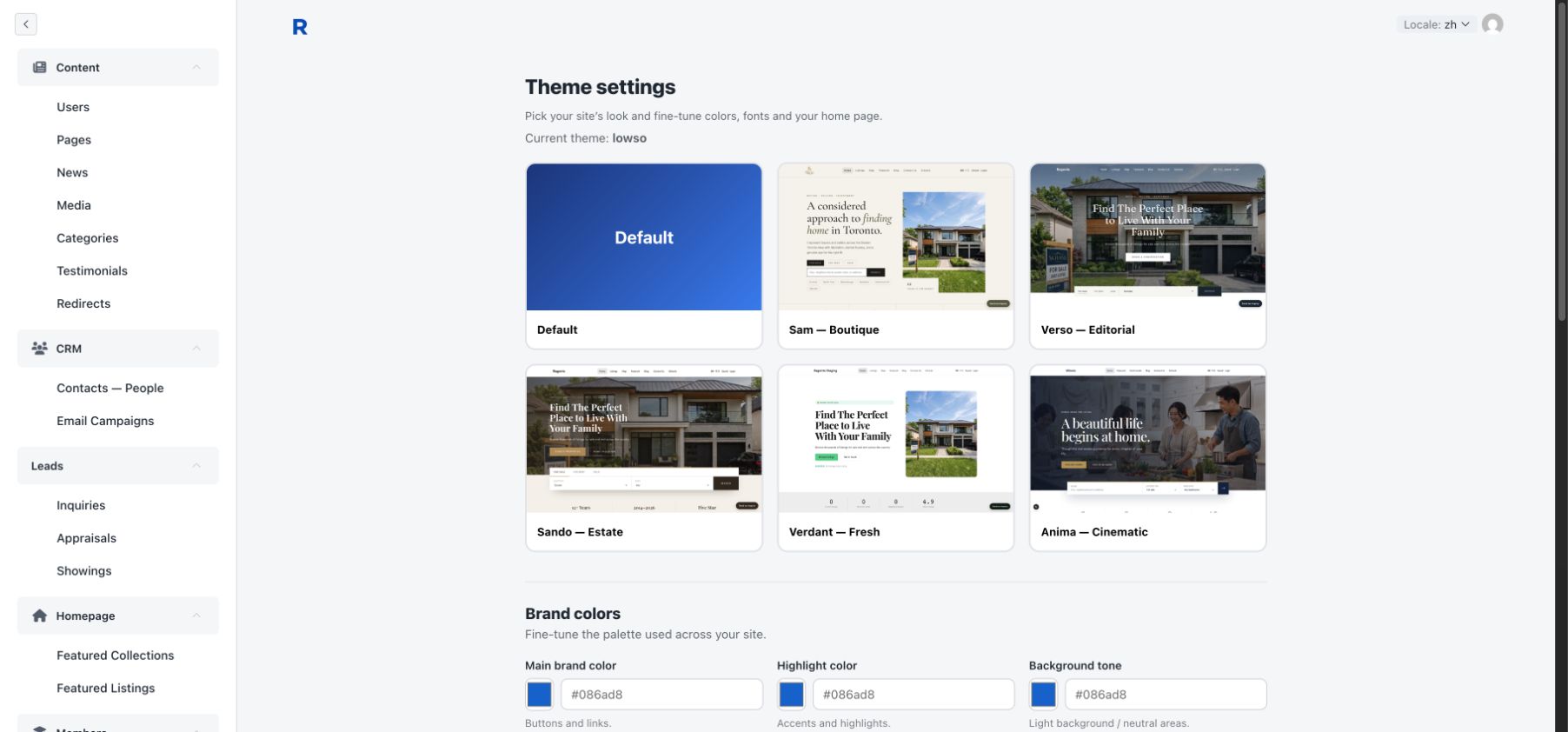 1 · Open Theme2 · Choose a theme3 · Set brand colors